Installing Lovely Injector and BBP
What are they?
- Lovely Injector is a runtime Lua injector for LÖVE2D, the game framework Beatblock uses. It allows us to inject our own code into the game.
- Beatblock Plus is a mod loader that provides utilities for mod developers and an ingame configuration menu for users.
Installing Lovely Injector
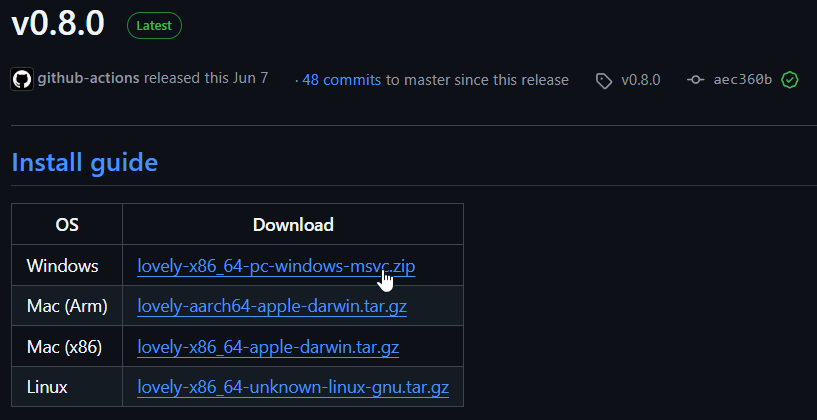
- Download the latest version of lovely-injector.
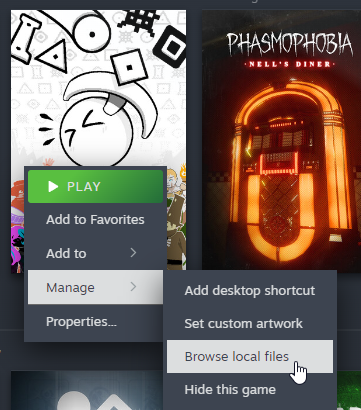
- Navigate to your Beatblock's installation folder.
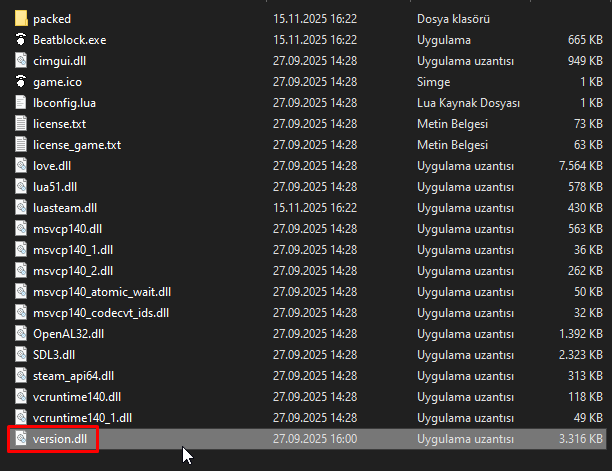
- Drag the
version.dllfile inside lovely-injector to your game's installation folder.
- Launch the game. Make sure it also runs a terminal along with the game.
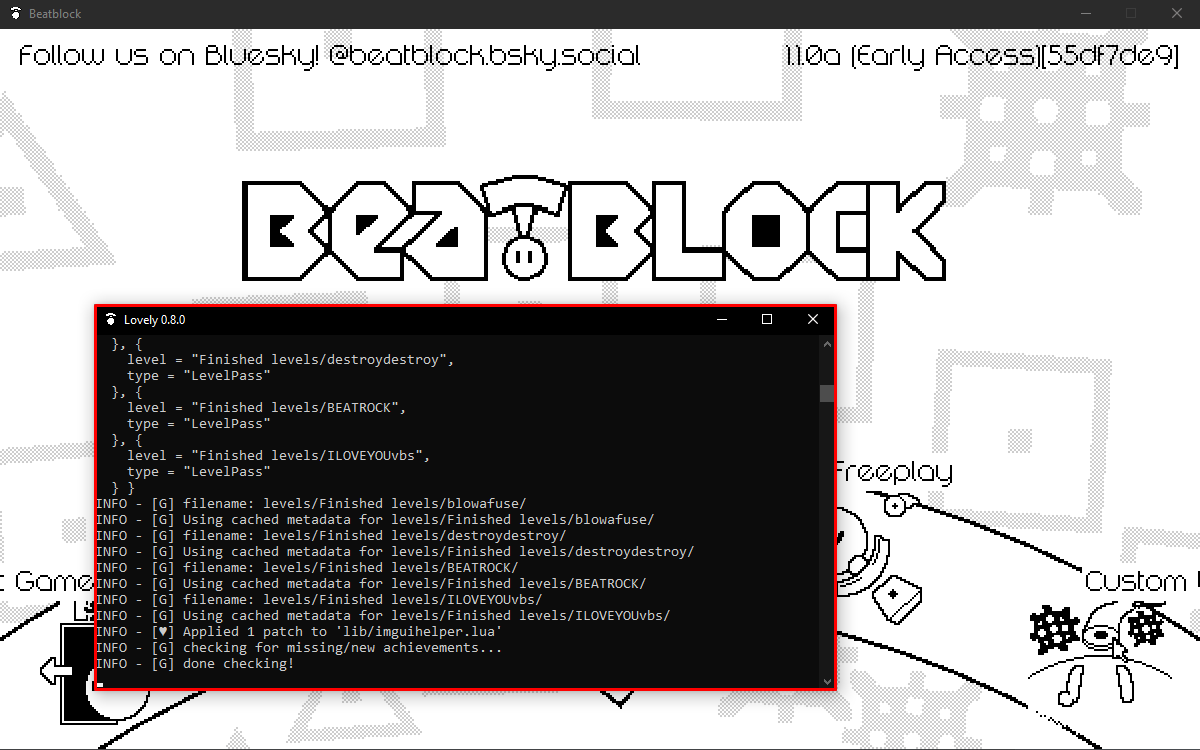
If you see the terminal, that means you've successfully installed lovely-injector! Now for Beatblock Plus.
Installing Lovely Injector on the native Linux build of Beatblock
Note: It is recommended for Linux users to run Beatblock with proton rather than the native Linux build. This is due to the fact that the proton build works completely fine for modding with no performance impact and no additional bugs. The native build on the other hand, takes extra effort to install lovely onto and does have additional bugs (which are almost entirely imgui related).
To install lovely-injector on Linux with proton, follow the general instructions in the section above.
-
Download the latest Linux version of lovely-injector.
-
Navigate to your Beatblock's installation folder.
-
Drag the
liblovely.soandrun_lovely_linuxfiles inside lovely-injector to your game's installation folder. Note: in the Beatblock folder, not the Beatblock/bin folder where the binary file is. -
Replace the run_lovely_linux.sh contents with the following:
#!/bin/sh

if [ -z "$APPDIR" ]; then
  APPDIR="$(dirname "$(readlink -f "$0")")"
fi
export LD_LIBRARY_PATH="$APPDIR/lib/:$LD_LIBRARY_PATH"
if [ -z "$XDG_DATA_DIRS" ]; then #unset or empty
    XDG_DATA_DIRS="/usr/local/share/:/usr/share/"
fi
export XDG_DATA_DIRS="$APPDIR/share/:$XDG_DATA_DIRS"
if [ -z "$LUA_PATH" ]; then
    LUA_PATH=";"
fi
export LUA_PATH="$APPDIR/share/luajit-2.1.0-beta3/?.lua;$APPDIR/share/lua/5.1/?.lua;$LUA_PATH"
if [ -z "$LUA_CPATH" ]; then
    LUA_CPATH=";"
fi
export LUA_CPATH="$APPDIR/lib/?.so;$APPDIR/lib/lua/5.1/?.so;$LUA_CPATH"

LD_PRELOAD="$LD_PRELOAD:liblovely.so" "$APPDIR/bin/Beatblock" --mod-dir="./../../../../beatblock/Mods" "$@"
-
Navigate to Beatblock's Steam launch arguments and add
~/.local/share/Steam/steamapps/common/Beatblock/run_lovely_linux.sh %command%.
If you want a terminal window like what Windows/proton has, putxterm -hold -ebefore the path in the launch command. -
Launch the game. This should create a
Modsfolder at ~/.local/share/beatblock
Installing Beatblock Plus
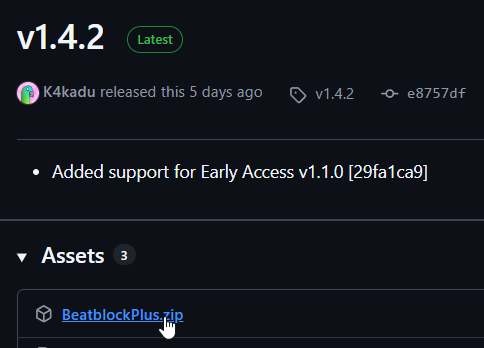
- Download the latest version of Beatblock Plus
- Open your game's save directory:
For Windows:
- Press
Win + R - Type
%appdata%\beatblockand hit enter
For Linux (proton):
- Right click on Beatblock on Steam
- Click Properties
- Click Installed Files
- Go out from the folder that opens to the steamapps folder
- Go to compatdata/3045200/pfx/drive_c/users/steamuser/AppData/Roaming/beatblock
For Linux (native):
- Go to ~/.local/share/beatblock
For MacOS:
- Open Finder
- Press
Command + Shift + G - Type
~/Library/Application Support/beatblockand hit enter
- Drag the Beatblock Plus folder inside the Mods folder

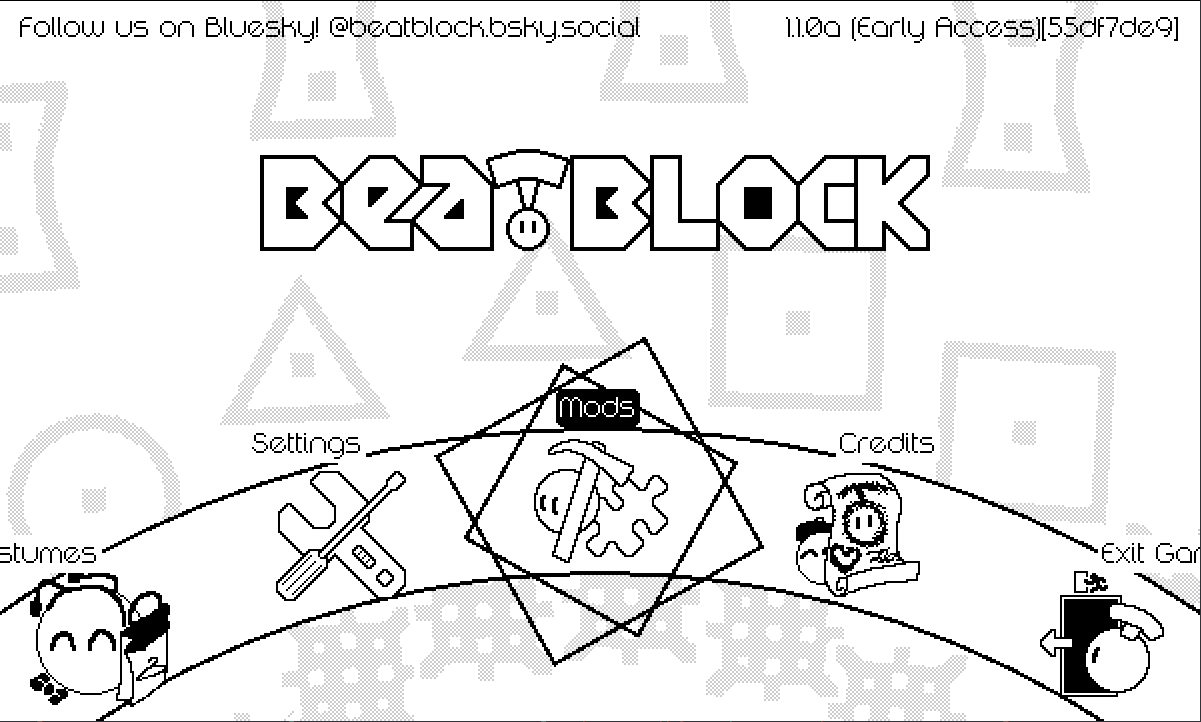
- When you launch the game, you should see a 'Mods' button in the main menu.
That's all! You are now ready to download community made mods.